Browse - This opening screen provides access to the main section-image database.
NOTE: These screen captures (stage 4) are used here as examples. Other stages have similar interfaces with the same features.
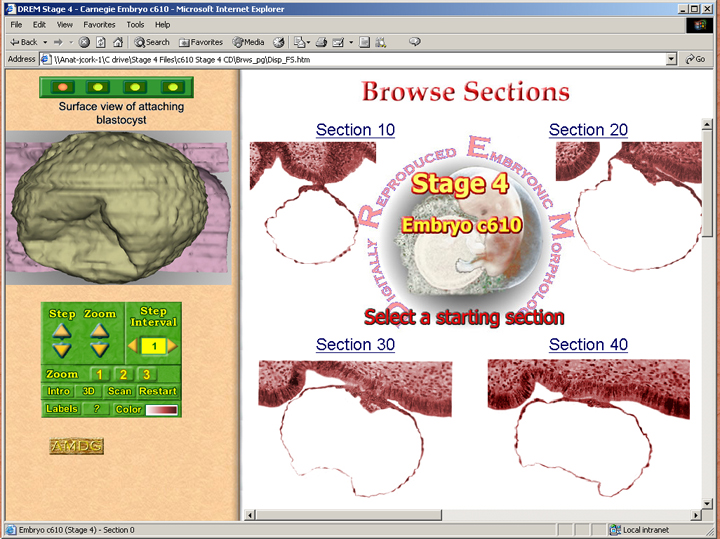
The right side of the window is the section display area. It shows the different sections where it is possible to start browsing. The starting section can be selected by clicking on the image or the text label.
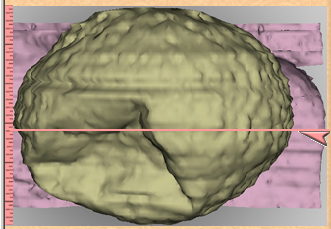
On the left side of the window are the control panels and the section level indicator. Four different images are available for the section level indicator, these can be changed by clicking on the buttons above the image. The images are of either 3D reconstructions of the embryo or photographs taken before the embryo was sections. The section level indicator is not active until a starting section has been selected but the images can be changed on the opening screen.
Most of the control panel buttons are inactive at this point, however, the navigation buttons, [Intro], [3D] and [Scan] will take you to other parts of the disk. The [?] button will display a list of the abbreviations used in the section labels and the [Color] button will change the color of the sections. The selected color table is displayed in the color gradient box next to the [Color] button.
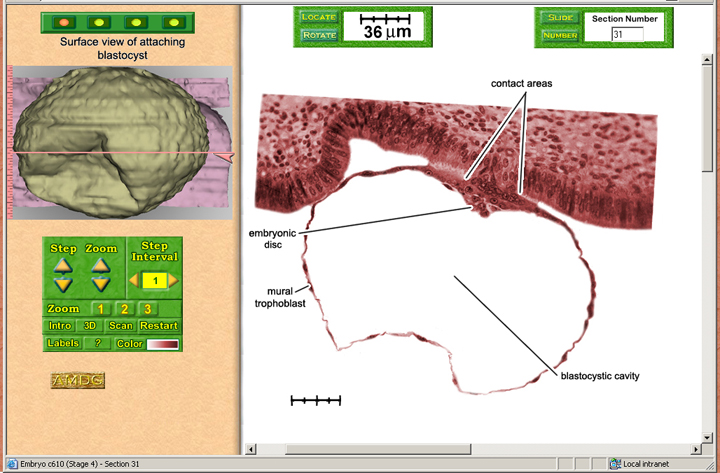
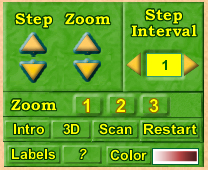
Once a starting section has been selected the section display window comes up and the browse controls in the control panel become active. The [Restart] button returns to the Browse opening screen. The section labels can be turned on and off by clicking on the [Labels] button. The [?] brings up a list of abbreviations used in the labels. Each section can be viewed at up to 4 different magnifications. Clicking on the numbered button in the Zoom bar will display the high magnification image. Note that the higher magnification images may be very large and take a while to load. Sometimes a dialog box will pop up while an image is loading. If such a box is displayed wait until the image is visible before clicking OK. Occasionally section images may not display promptly. If this occurs they can usually be displayed by going to a lower magnification and then reselecting the required zoom level. Alternatively, in some browsers, right clicking the mouse and selecting "show image" will often force the window to display the section image.
Selecting the Next Section
There are two ways to select a new section for display. The section level indicator on the embryo picture can be dragged to any level, or the Step controls in the control panel can be used to jump to adjacent sections.
| Control Panel | ![]() |
The Step buttons control the step size and direction. Step size can be changed by clicking on the < > buttons under "Step Interval". To jump to the next section click on the ^ or v Step buttons. N.B. If not every section is included in the database the stepping function will display the closest available section. A step interval of "1" will always step to the "next" available section.
![]() |
Section Level Indicator |
The Section Level Indicator can be dragged using the mouse. Note: the scale only provides an approximate indication of the section number.
At the top of the section display window are two other panels that display further information about the sections.
Scale Control Panel |
![]() |
An appropriate scale bar is displayed in the Scale Control Panel at each level of magnification. A measuring bar, at the same scale, can be superimposed on the section using the two buttons on the panel.
The [LOCATE] button positions the measuring bar at a location defined by clicking the mouse pointer on the display screen. This can be used to initially display a scale bar next to the section and also enables the measuring bar to be brought into the field of view when scrolling around the high magnification images.
To "locate" the measuring bar:
1. Click the [Locate] button on the control panel.2. Position the mouse pointer where you want the measuring bar to be displayed in the section window.
3. Click the mouse to display the measuring bar at that location.
The measuring bar can be relocated by dragging with the mouse.
The [ROTATE] button displays the measuring bar at different angles enabling the user to obtain more accurate measurements.
To "rotate" the measuring bar click on the button on the control panel. The measuring bar rotates 45 degrees clockwise for each click of the button.
![]() |
Section Data Panel |
This panel shows the section number or section location.
The [SLIDE] button switches the display to show the "Section Location Code" for the currently displayed section. The "Section Location Code" represents the location of the section in the Slide boxes housed at the Human Developmental Anatomy Center in Washington DC.
The code indicates the " Slide # - Row # - Section # " for each section
The [NUMBER] displays the section number relative to the complete set of sections for the embryo, i.e. section #1 is the first section at the crown and section #425 is the last section at the rump.
The section number is also displayed in the status bar at the bottom of the window. When the mouse is moved over a button the status bar message will temporarily show a description of the button function and will return to showing the section number when the mouse is moved.
Status Bar Message